Whatsapp icon

Dell XPS or Latitude? A Kenya Laptop Guide

Choose between Dell XPS and Latitude laptops in Kenya by matching portability, work style, ports, condition and budget to your everyday workload.


Umoja Marketplace logo
Admin

Published on 30 Sep, 2026


Dell XPS or Latitude? A Kenya Laptop Guide | Umoja Marketplace

A laptop is a daily tool, so the best choice is rarely the machine with the biggest headline number. It is the one that matches your desk, bag, software, screen time and budget without creating new compromises every morning.

Explore Umoja’s Dell range and compare the current options below before ordering.

Compare exact laptops, not just family names

Dell XPS and Latitude describe product families with many generations and configurations. An XPS 13 from one year is not interchangeable with an XPS 15 from another, and two Latitude machines can differ substantially in processor, memory and condition. Begin with the full model identifier, processor generation, RAM, storage and display. The family name gives useful context, but it does not establish the performance or features of the unit offered to you.

For Kenyan buyers comparing new and refurbished machines, age and condition can matter as much as the original market position. A premium laptop with a tired battery and limited memory may be less useful than a well-maintained business model at the same price. Ask what you will do every day: browser work, spreadsheets, development, editing or meetings. Then compare those needs with the exact specification rather than assuming the more prestigious name is automatically the better purchase.

XPS priorities and Latitude priorities

XPS models are often considered for their compact design, displays and premium presentation. Latitude models are commonly associated with business use and practical fleet requirements. Those broad associations are useful starting points, not promises about every laptop. Ports, weight, screen options and serviceability vary across the range. A particular Latitude can be slim, and a particular XPS can offer the connections you need, so inspect the actual hardware.

If portability matters most, compare the laptop with its charger and any adapters you must carry. If desk work dominates, look at docking, external displays and keyboard comfort. A polished laptop that requires several extra accessories may be less convenient than a simpler machine with the right ports. Equally, a compact XPS may be worth the difference if its size genuinely improves daily travel. Explain the intended use before asking which series to choose.

Processor generation and workload

Do not compare processors only by labels such as Core i5 and Core i7. Those labels span many generations and power categories. Record the full processor name and examine what it means for your software. An older high-tier chip is not automatically better than a newer lower-tier one. Sustained performance also depends on cooling, power settings and the condition of the machine, not just the processor printed in a listing.

For office work, the ability to run your actual applications responsively is more useful than an isolated benchmark. For editing, development or specialist software, check the recommended requirements and test a representative project if possible. A thin laptop can be excellent for portable work while being a poor choice for a heavy workload that runs continuously. If you need graphics acceleration, verify the exact graphics hardware rather than assuming all XPS or Latitude configurations include it.

Operating system and ownership checks

Confirm the operating system supplied and whether the exact hardware meets its support requirements. Do not assume that a machine advertised with an installed system is officially compatible with every current version. Check Dell and the operating-system provider's guidance. Older hardware can still be useful, but its supported software path should be clear before you rely on it for work.

The laptop should also be ready for normal ownership. Check that there is no unexplained firmware password, organisational management lock or account restriction. A former business device must be appropriately released from its previous environment. Verify normal setup instead of accepting a promise that a lock can be bypassed later. Keep the service tag and invoice so that support queries refer to the actual machine and purchase.

Display choices and everyday comfort

Screen size, resolution, finish and touch support can differ within one model. Check the configuration being supplied, not merely the range's best available display. A glossy high-resolution panel may look impressive but reflect a bright room, while a different panel may be easier for long document sessions. Think about your usual lighting and the distance at which you work. More pixels are not automatically more useful for every task.

Inspect a refurbished display for uneven brightness, marks and defective pixels. Open a white page, a dark image and some small text. Check hinges and whether the lid stays at the angle you prefer. A touch display should be tested if it is included in the description. Comfort matters because the screen is the part of the laptop you use continuously; a fast machine with an irritating display can still be a poor fit.

Ports and external equipment

List the equipment you connect: an HDMI display, USB devices, memory cards, a network cable or a dock. Match each requirement to the exact laptop's ports and supported modes. USB-C sockets do not all provide the same charging, display or data features. A cable adapter cannot create a capability the port itself lacks. Check the manual before assuming that any USB-C dock will support your entire setup.

If you use an external monitor, test the desired resolution and connection method. For several monitors, verify the laptop and dock limits together. If the charger uses USB-C, confirm the appropriate power profile and supplied adapter. A machine that comes without its correct charger may require additional spending. Keep the accessory comparison specific: one working setup is more useful than a bag of adapters whose compatibility remains uncertain.

Memory, storage and upgrades

Memory affects how comfortably you can keep applications open, while storage holds your operating system, apps and files. They are different resources. An SSD does not compensate for insufficient RAM in every workload, and extra memory does not create space for large projects. Compare the capacities you need now with your likely requirements over the period you expect to keep the laptop.

Upgradeability is model-specific. Some slim machines have soldered memory, while others have replaceable modules. Dell's memory-upgrade guidance directs buyers toward the correct model documentation. Check the service manual for the actual unit before assuming you can add RAM later. Storage type, slots and supported capacities also need verification. If the memory cannot be upgraded, choosing enough at purchase becomes particularly important.

Keyboard, camera and meetings

Type a short paragraph and test the keys you use most often. Check the keyboard layout, backlight where fitted and trackpad operation. Imported laptops can have different layouts, and a changed keyboard should be described accurately. A few minutes of testing can reveal a sticky key or uncomfortable spacing that is not visible in product photographs. If typing is your main work, treat that test as central to the decision.

For meetings, test the camera, microphone and speakers in a call or recording. Confirm whether the camera is present and functioning, especially on a used unit. Check wireless connection stability and whether the machine's fan becomes intrusive during a realistic call. A separate headset or webcam can solve some limitations, but include those costs if they are necessary. The laptop should suit the complete workday, not only perform well when you briefly open a browser.

Use the service tag to settle ambiguous descriptions

Dell's service tag can help identify the machine and access the relevant support documentation. Compare that information with the seller's description and the hardware shown in the system. Do not assume a broad phrase such as XPS 15 class identifies a particular processor, display or graphics option. If the description and device differ, resolve the mismatch before ordering rather than relying on the most favourable interpretation.

For a business purchase, record the exact configuration and condition of each machine. That makes later support, accessory matching and replacement planning easier. Two laptops sold under one family name can need different chargers or memory, so a clear inventory is useful even for a small office buying only a few devices. Accurate identification is a practical advantage throughout ownership.

Choosing for three common work patterns

For a commuter doing documents and meetings, prioritise battery condition, keyboard comfort and total carrying weight. A suitable Latitude or XPS can meet that brief, depending on the exact unit. For a desk-based analyst, memory, display connections and reliable input devices may carry more weight than a slim case. For a creator, check the actual editing workload, screen configuration and sustained performance before deciding which family fits.

Use the listed XPS 13, Latitude E7490 and other Dell options as candidates to inspect, not as equivalent products. Model descriptions can be ambiguous, so request the exact Dell identifier where a listing uses a general class name. Compare the current Umoja configuration and condition, then choose the machine whose verified features support your work. That approach is more dependable than buying either series on reputation alone.

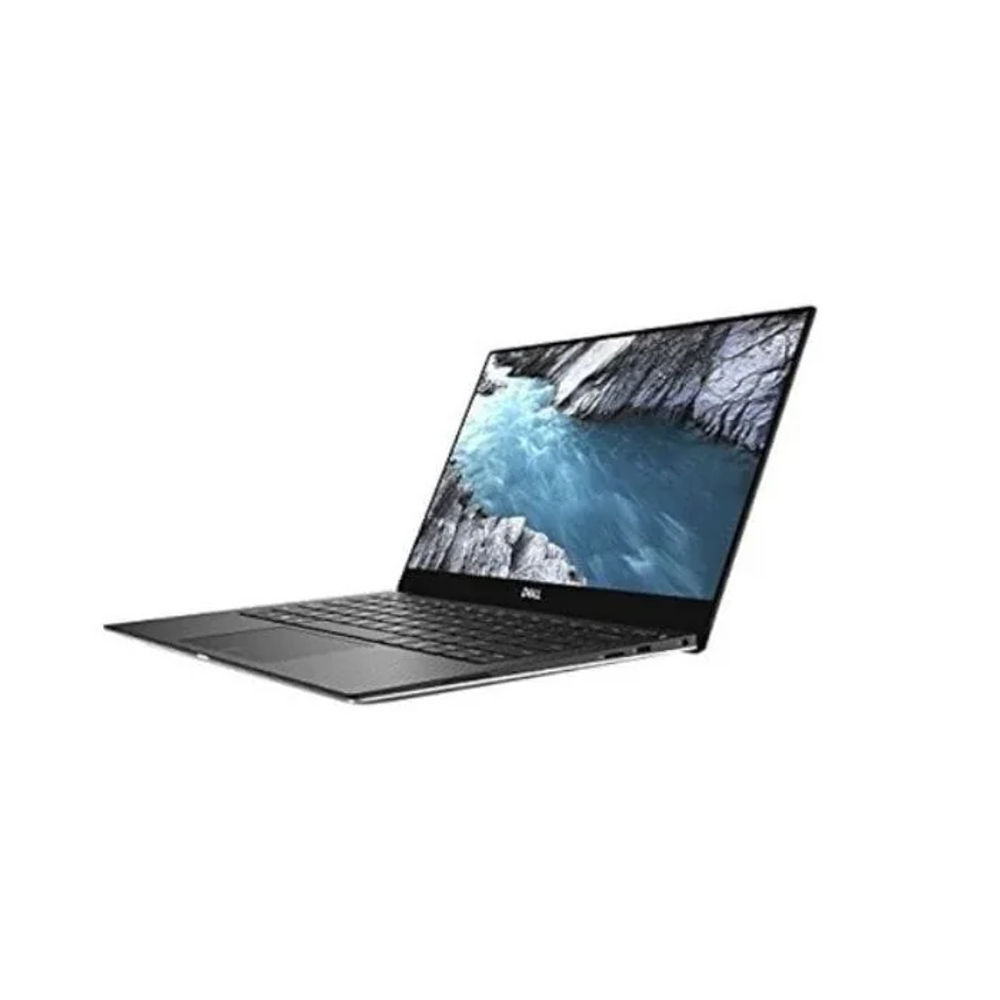
Current Umoja options

Use these existing Umoja listings to check the exact configuration, current price and availability. A linked product is an option to compare, not a guarantee of stock for every variant.

Refurbished condition and battery checks

Ask what refurbished means for the seller's particular offer. Cleaning, testing, replacement parts and cosmetic grading should not be assumed from the word alone. Request a condition description and inspect the unit supplied. Check the battery report or available diagnostics, charging behaviour and whether the laptop runs normally unplugged. A brief demonstration while connected to power does not establish useful portable endurance.

Inspect the case, hinges, screws and ports. Check for unusual damage and ask about any replaced components. Run the supported Dell diagnostics where possible. Battery life varies with use, so a seller's estimate should be explained rather than treated as a guaranteed number of hours. If a replacement battery is likely soon, include that cost before comparing the machine with a newer alternative.


Umoja Marketplace logo
Admin

Published on 30 Sep, 2026


Read next

Fast & Secure Delivery

Same-day available in Nairobi.

Genuine Products

Sourced from official distributors.

Easy Returns

On faulty, wrong or damaged items.

Pro Quality Support

Call & WhatsApp: Mon–Fri 8am–8pm, Sat 10am–2pm, Sun closed.