Whatsapp icon

PS5 Slim 1TB in Kenya: 2026 Gaming Setup Guide

Plan a PS5 Slim 1TB setup in Kenya for 2026 games with the right display, seating, headset and accessories for how you play.


Umoja Marketplace logo
Admin

Published on 30 Sep, 2026


PS5 Slim 1TB Kenya: 2026 Setup Guide | Umoja

PlayStation's 2026 release calendar continues to add major titles, which makes a complete, comfortable console setup more useful than buying the console alone.

That trend is worth using as a prompt to shop more carefully, not simply to upgrade quickly. PlayStation's 2026 PS5 games guide is useful context; the live Umoja listings below are the reference for local configuration and availability.

Build the setup around the games you play

A good PS5 setup is not defined by a long accessory list. It is a space where your chosen games work comfortably, the console stays properly ventilated and the connection is dependable. Start with three games you expect to play and the way you play them: alone, on a sofa with friends or online. That determines which screen, controller and audio requirements matter. An attractive room photograph does not tell you whether the equipment suits those tasks.

If you are still choosing a console edition, use the separate buying guide to settle disc and digital requirements. This article focuses on what happens after that decision: positioning, display configuration, accounts, downloads and practical comfort. Sony's official getting-started instructions are the reference for installation. Follow the guide for the actual model supplied rather than copying the physical arrangement of an older console.

Select the right HDMI input and television mode

Read your display's manual for its gaming features and input capabilities. Different HDMI ports may support different modes, even on the same television. Use a suitable cable and enable the required settings on the screen. A 4K label does not guarantee every refresh rate, HDR option or variable refresh feature. Check the console, display and cable as a complete connection rather than assuming one advertised feature makes the entire setup compatible.

Start with the television's appropriate game mode and verify that the image looks correct. Some picture-processing settings can add delay or alter the image in ways you do not want for games. Adjust brightness and supported HDR using the instructions rather than immediately copying someone else's numbers. Room lighting and the particular screen affect what is comfortable. Your settings should suit the display you own, not a different model used in a video tutorial.

Put the console somewhere it can operate normally

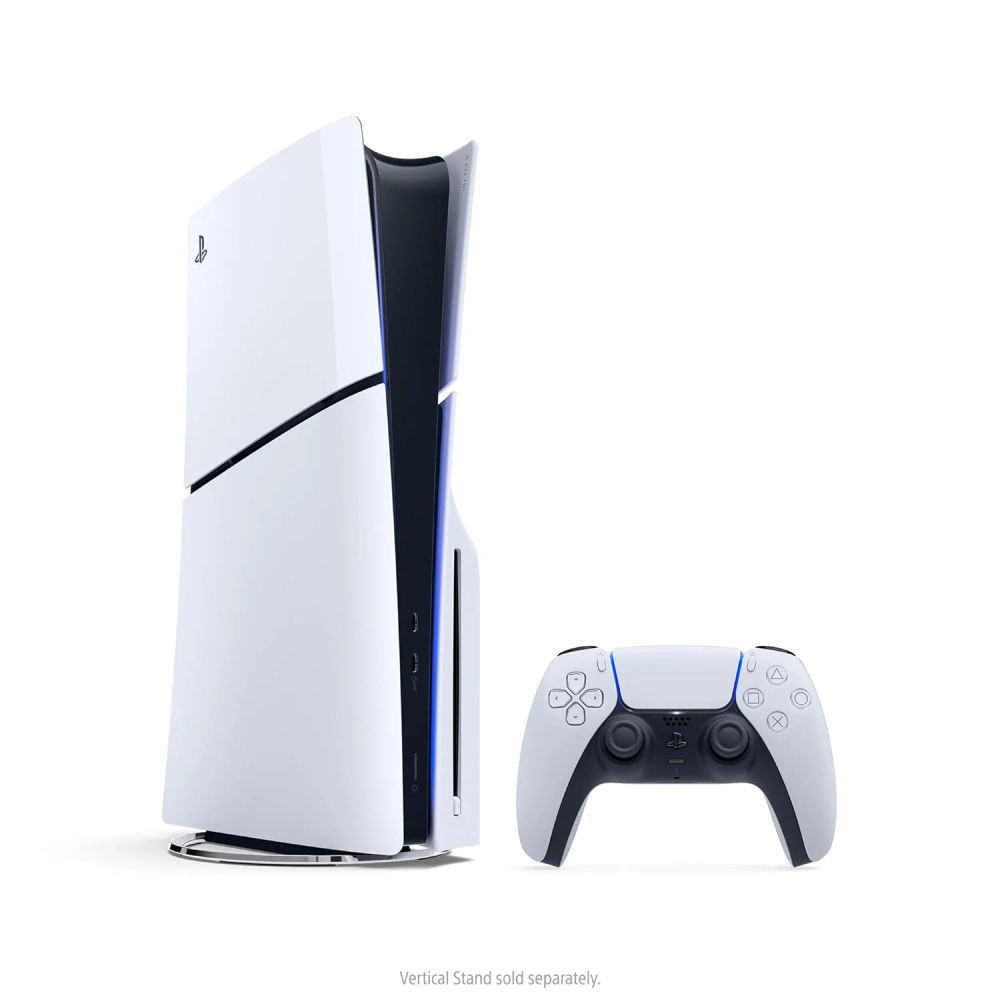
Choose a stable surface with the clearance and airflow Sony recommends. A closed cabinet can look tidy while restricting ventilation. Do not cover openings or pile equipment against them. Check the supports needed for your chosen orientation and use the instructions for the Slim model. If a vertical stand is required for your arrangement, confirm whether it is included or separately supplied before improvising a position.

Route the power and HDMI cables without tension. Leave room to reach controls and connections when needed. Avoid placing the console where it is likely to be knocked, exposed to liquid or surrounded by loose debris. A practical setup should be easy to clean and inspect. Keeping the hardware accessible can make ordinary maintenance and troubleshooting simpler than hiding everything behind a tightly packed television unit.

Seating and the room

Place the display at a comfortable viewing distance and height for your usual seat. Avoid making neck strain part of a long session. A specialised gaming chair is not essential for everyone; support, adjustment and how it fits your body matter more than the label. If you are considering the listed chair, check dimensions and adjustment rather than buying only from its visual style.

Lighting should let you move around the room comfortably without creating distracting reflections. Keep drinks away from the console and controllers, and arrange cables so that people can enter and leave without catching them. Take breaks during extended play. These ordinary details often improve the setup more than decorative accessories because they affect every session, whichever game is running.

Resolution and frame-rate expectations

Games offer different graphics modes. A performance option may prioritise smoother movement, while another mode may favour detail or particular visual effects. The available choices depend on the title and current software. A console capability does not mean every game supports every resolution or frame rate. Read the game's settings and choose the balance you prefer, especially if the display cannot use a particular high-refresh mode.

For competitive games, responsiveness and visibility may be more important than maximum visual detail. For a story game, you may prefer a different trade-off. Try both supported modes when practical and keep the one that feels better for that title. There is no need to force one universal setting across a library whose games behave differently. Make changes deliberately and check the result instead of treating a specification headline as the only correct way to play.

Plan the first download and storage layout

Leave time for system setup, updates and game installation before inviting people over for the first session. A physical disc can still need installation or updates. Check the current size of your chosen games and understand that advertised console capacity is not entirely free application space. Keep some flexibility for patches and captures. Installing everything immediately may create more management work than starting with the games you intend to play now.

For storage expansion, follow Sony's compatibility requirements. An internal M.2 expansion and a USB external drive serve different roles; do not assume they run every game in the same way. Saved progress is another separate concern. Understand the backup or cloud arrangements available for your account before clearing installations. Keeping games organised is easier when you know which files are replaceable downloads and which represent progress you want to protect.

Audio and voice chat

Choose audio around the room and the people sharing it. Television speakers may be enough for casual play, while a headset can support voice chat or quieter late-night sessions. Check the connection method supported by the console and headset. A phone's Bluetooth behaviour does not prove that the headset connects to PS5 in the way you expect. For wired use, confirm the connector and microphone arrangement.

Test a headset in the actual game or chat application. Set a comfortable volume and confirm that the microphone does not pick up excessive background sound. The Havit option linked here should be checked against the intended connection rather than assumed to provide every function through every plug. If your audio setup is mainly for movies as well as games, assess the display and external audio connections together before buying additional equipment.

Make the network dependable

If a suitable Ethernet connection is available near the console, consider using it to reduce wireless variability. If you rely on Wi-Fi, test the connection at the actual console position. A signal behind a cabinet or across several walls can differ from the speed measured beside the router. Move equipment or adjust the network where needed before assuming that a more expensive internet package solves a local coverage problem.

Online play depends on consistency and latency as well as download speed. Large background downloads can affect other users in the home. Plan substantial installations for a suitable time and check your data allowance. A mobile hotspot can be useful temporarily, but the ongoing cost and reliability should be assessed honestly. The console does not make every home connection equally suitable for multiplayer, streaming and large game updates.

Controllers and local multiplayer

A second controller is valuable only if the games and sessions you plan use it. Check local multiplayer support for each title. Online multiplayer does not automatically mean two people can play together on one console. If the console will be shared by a household, set up the accounts and profiles needed for each player and consider the appropriate parental controls where relevant.

Keep a charging routine so that the controller is ready when you want to play. Test cables and any charging station for compatibility. With a used controller, check sticks, triggers, buttons and normal connection. A spare can be useful, but it should not be the first purchase if your main issue is a poor network or uncomfortable screen position. Add hardware to solve the actual constraint rather than filling every available accessory category.

Current Umoja options

Accounts and digital purchases

Set up your own account using PlayStation's current process, and check the region and payment options before funding it. Gift cards and downloadable content can have region requirements. Do not assume a code works merely because its value is printed in a familiar currency. Keep account-recovery information safe and enable the available security options. A secure account is part of protecting your game library, not an optional finishing touch.

Avoid relying on a seller-controlled account as the basis of the setup. Access to someone else's downloads is not the same as owning purchases in your own account. Subscriptions also have ongoing terms, so check which benefits require an active membership and which multiplayer modes need one. Budget for the services you intend to use rather than treating every online feature as included with the console itself.

Test the complete setup before calling it finished

Run one of your chosen games, check the display mode, test controller charging and make a call or voice-chat test if you need it. Confirm a download and ordinary network behaviour. Keep the invoice and hardware details for future support. Use live Umoja pages to check current console and accessory options; a guide is a planning aid rather than a promise that every item is available today.

A finished setup should let you start a normal session without rearranging cables, searching for account details or discovering that a key accessory does not connect. Build that dependable foundation first. You can add storage, audio or furniture later when you know which improvement would make the games you already enjoy easier to play.


Umoja Marketplace logo
Admin

Published on 30 Sep, 2026


Read next

Fast & Secure Delivery

Same-day available in Nairobi.

Genuine Products

Sourced from official distributors.

Easy Returns

On faulty, wrong or damaged items.

Pro Quality Support

Call & WhatsApp: Mon–Fri 8am–8pm, Sat 10am–2pm, Sun closed.